n8n × cognee: Add AI Memory to Any Workflow Automation
So, you’ve built a tight, tidy, AI-driven customer service automation. A support request email comes in, it spots the issue, drafts a reply, and sends it. Nice.
Two days later, the person replies: “Tried that—still broken.”
Your workflow runs again… and treats them like a stranger—recommending the exact same fix, with no awareness of what already happened. As a result, they lose time, patience, and trust in your business. Not nice.
That’s the awkward truth about most automations: they’re great at doing things, terrible at understanding and remembering things.
Still, though, automation has come a long way—platforms like n8n now connect 1000+ apps and services, so you can trigger and chain actions across your stack without writing any code. But even the most comprehensive and well-designed workflows usually don’t come with long-term memory that enables them to carry context forward.
That’s exactly why we’ve made it possible to integrate cognee with n8n—to give your automations a persistent memory layer, packaged as a node. In this post, we’ll show how it works, what you can build with it, and how to get your first context-aware workflow running in minutes.
When Every Run Starts from 0
n8n is designed for task orchestration: routing tickets, posting to Slack, updating sheets, opening Jira issues.
But most workflows are stateless between executions unless you bolt on storage and invent your own rules for “what to save” and “how to retrieve it.” That’s when you start stitching together Airtable bases, Postgres tables, and single-purpose API calls—as the “no-code” canvas quietly turns into an dev-requiring integration project.
The cost isn’t just technical debt—it’s time and budget spent maintaining glue instead of building what moves the business forward.
McKinsey has reported that AI-powered customer interaction approaches can reduce cost-to-serve by 20–30% and improve customer satisfaction by 15–20%—but results like that depend on having the right context available at the moment an automation needs to act.
Memory as a First-Class Node
We’ve decided to close the loop by making long-term workflow context available inside n8n, natively. cognee provides it with a real memory layer—and you don’t have to wire it up and micromanage it, it’s literally just a node that drops onto the canvas and behaves like any other step in your workflow.
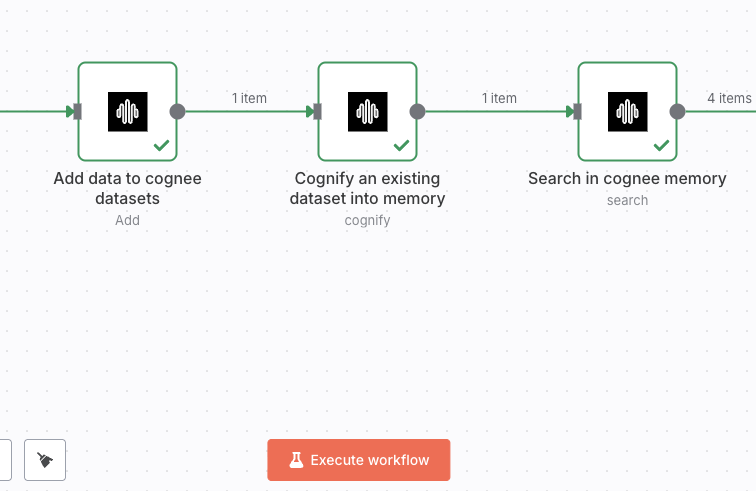
The n8n-nodes-cognee community node gives you three core operations:
- Add Data → write text into a named dataset
- cognify → turn that dataset into a knowledge graph with embeddings, chunks, and summaries
- Search → ask questions later, scoped to one or more datasets
The cognify step is explicitly designed to transform ingested text into chunks, embeddings, summaries, and a knowledge graph (nodes + edges)—so searches can use both semantic similarity and graph structure.
The important bit for n8n users: your workflow doesn’t have to become a database design exercise. You keep working in nodes.
A Few Practical, Self-Improving Workflows
You don’t necessarily need a grand “AI system” to feel the benefit—it could be just a single, simple workflow that gets you to stop starting from zero. Below are a few n8n-native patterns where a memory node can provide immediate benefit.
1) Customer support that remembers prior fixes
Flow pattern: ticket comes in → write it → query history → respond
-
Trigger: new ticket / email
-
Add Data: Store the ticket text plus whatever context you include in the same string (customer name, ticket id, product area)
-
cognify: Process into a knowledge graph (on a schedule or after x batches)
-
Search: Before drafting the reply, ask:
“What did we try last time for this customer’s shipping issue?”
Result: The workflow can pull forward earlier attempts and keep continuity across follow-ups—without you maintaining a separate “memory table.”
2) Context handoffs between workflows (collector → analyst)
Have a data collection workflow store findings that an analysis workflow retrieves later:
- A collector workflow runs frequently and writes new material (tickets, call notes, form submissions).
- An analyst workflow runs later and queries the same dataset to generate summaries, exceptions, or weekly rollups.
Because both workflows point at the same dataset name, they share memory without sharing implementation details.
3) Sales notes that accumulate into a queryable knowledge base
Sales data tends to be scattered across CRM fields, meeting notes, email threads, Slack chats, and myriad other data vessels.
With cognee, you can write those notes as they happen, then query them later with natural language:
- “What’s the current situation with Acme Corp?”
- “Which deals mentioned budget constraints recently?”
- “Which competitors are coming up most often this quarter?”
Getting Started in 5 Minutes
Community nodes installed from npm are only available on self-hosted n8n. Here’s how to get cognee up and running natively in a few simple steps:
1) Make sure community nodes are enabled
On most setups this is already on, but if you don’t see Settings → Community Nodes, check that N8N_COMMUNITY_PACKAGES_ENABLED is set to true.
2) Install the cognee node (GUI)
-
Go to Settings → Community Nodes.
-
Click Install.
-
Enter the package name:
-
Accept the “unverified code” warning and confirm the install.
-
If prompted (or if the node doesn’t show up right away), restart n8n.
3) Add your credentials (Base URL + API key)
- Get your API key here.
- In n8n, create credentials of type cognee API and fill in:
- Base URL
- API Key
4) Build your first “memory loop”
Drop in a cognee node and configure:
- Add Data → write text into a dataset (
datasetName,textData) - cognify → process one or more datasets into memory
- Search → query the dataset with your chosen
searchType(we cover this below)
That’s it—your workflow now has memory, fully within the canvas.
Why This Isn’t “Just a Vector Store”
Vector search is great at finding semantically similar text. But more and more, we’re in need of deeply insightful answers that draw on meaningful, nuanced connections between data points.
These answers need to wield impactful conceptualization, like the kind you naturally ask for in operations using phrases like: “expiring soon,” “related accounts,” “same root cause,” “what changed since last time.”
cognee’s design pairs:
- Vector storage (embeddings for semantic similarity) with
- Knowledge graphs (entities + relationships you can traverse)
for retrieval that isn’t just “similar text,” but that’s imbued with interconnected, queryable context—so your workflow can follow relationships, compare past events, and surface what matters in the moment.
So, if you add something like:
“We signed a £2.4M contract with HealthBridge Systems in healthcare, running Feb 2023 to Jan 2026.”
…cognify extracts the entities and their relationships (nodes/edges) and generates embeddings from them, then makes the dataset searchable via both structure and semantic similarity.
This means queries like "Show me all contracts expiring next quarter" or "Which companies are in both healthcare and technology?" become possible—questions that would break a pure vector search.
Choosing a Search Mode
In the node, searchType options include:
- GraphCompletion (
GRAPH_COMPLETION): best default—uses graph structure plus embeddings for balanced answers. - Chain-of-thought-style (
GRAPH_COMPLETION_COT): same idea, but tuned for questions that need multi-step reasoning. - RAGCompletion (
RAG_COMPLETION): faster, more “classic retrieval + answer,” when you just need straightforward recall.
Choose based on your use case, or experiment to see what works best for your data.
Why n8n Users Will Love This
It stays on the canvas. You configure memory operations the same way you configure everything else in n8n—by wiring nodes together and passing data through in the visual builder.
It is a real n8n node. The cognee integration isn't a hacky workaround—it’s a proper community node, so it follows n8n’s conventions and slots into existing workflows like any other step.
It scales from one workflow to many. You can start with a simple loop (Add Data → cognify → Search), then reuse the same dataset across multiple workflows—collector flows that write continuously, analyst flows that query on a schedule, and responders that pull context right before acting.
It composes with your whole stack. Because n8n already connects to 1000+ apps and services, you can feed memory from anywhere (tickets, forms, Slack messages) and query it anywhere (before generating a reply, opening a Jira issue, routing an escalation).
Start Building Workflows That Remember
This integration is part of a larger shift happening across the AI ecosystem: orchestration tools are moving from stateless executors to context-aware systems with continuity.
Google’s Agent Development Kit (ADK), for example, explicitly frames agent state and memory as first-class concerns for systems that span sessions. That’s why we integrated ADK with cognee—so Gemini agents can treat persistent memory as “just another tool,” not a separate state project.
And now we’re bringing the same idea to n8n: a memory node that lets automations retain context instead of starting from zero each run.
n8n is already helping businesses piece together the parts that keep them running. With AI memory in the loop, those workflows don’t just execute—they accumulate what they’ve learned, carry it into the next run, and respond like they understand and remember.